Create Permits
Permits are an easy way to manage contractors permits, inductions and insurances (Access Templates/Levels are for advanced contractor management).
In VRP, navigate to Access> Permits. On this page all your permits are listed.
You can also edit permits by pressing the  icon.
icon.

Creating a new permit

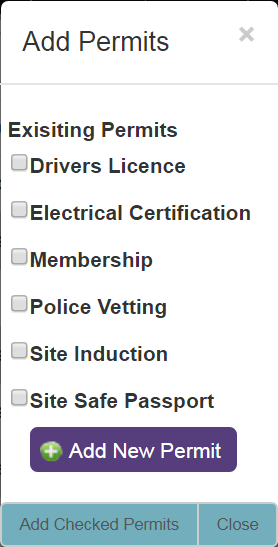
Step 3. Click ‘Add’. The permit will now appear in the ‘Add Permits’ box.

- Access > Permits,
- the Contractor Authorisation Screen
- when you add a new contractor
Step 1. Click on the icon or the Add Permits button.
Access> Permits page

Contractor Authorisation Screen

When adding a new contractor or contractor company
The permit will now appear either in the permits list or on the contractor’s or contractor company's authorisation page, depending on the method used.


In VRP, navigate to Access> Permits. On this page all your permits are listed.
icon.Creating a new permit
Create a new permit by selecting 'Add New Permit' button. See where you can create new permits for more detail about where you'll see this button.
Step 2. Fill in permit details.

- Active: means that the permit can be seen via the Contractor Authorisation Screen and contractors can be added to the permit. Ensure this is selected in order to use the permit.
- Mandatory: means that the permit is compulsory and needs to be certified in order for a contractor to be allowed on-site.
- Choose File & Document Name: a PDF file can be uploaded to the permit for future reference. Name the document if needed.
- JotForm ID: see Auto Certify Contractors using JotForms for more information.
Step 3. Click ‘Add’. The permit will now appear in the ‘Add Permits’ box.
Where you can create new permits
Permits can be added via:
- Access > Permits,
- the Contractor Authorisation Screen
- when you add a new contractor
- when you add a new contractor company
Step 1. Click on the
icon or the Add Permits button.Access> Permits page
Contractor Authorisation Screen
When adding a new contractor or contractor company
The permit will now appear either in the permits list or on the contractor’s or contractor company's authorisation page, depending on the method used.
Related Articles
Where you can create new permits
Permits can be added via: - Access > Permits, - the Contractor Authorisation Screen - when you add a new contractor - when you add a new contractor company Step 1. Click on the icon or the Add Permits button. Access> Permits page Contractor ...Adding permits to a company
In the Company Permits and Insurance section, press the Add Permits button. The Add Permits pop up will display any permits that have already been set up. If you need a permit that is not on the list you can add this by clicking the Add New Permit ...Bulk upload of contractors and permits
When you first start using VisitorRego you may have to transfer existing contractor data. This can be uploaded to the VR Portal in bulk. As part of the set up process you will be sent a Excel spreadsheet template. Below are the descriptions of the ...Advanced Contractor Management - Creating an Access Template
The following article details Advanced Contractor Management (Access Levels), it is advisable that you use Permits instead, which is a straight forward, easy induction process. Click here for an article explaining Permits. Navigate to the Access> ...Adding a Contractor
There are three different ways to add contractors to the VisitorRego Portal From the contractor list From a contractor company If the contractor has already signed in Adding a contractor from the contractor list The Contractors> Contractors tab ...