Emergency reports via your smart phone
Option 1
Select the short cut on your home page. See this article for details on how to set this up.
Option 2
Sign in to your account using your email and password that you have set up.
If you have not set this up please contact our friendly support team before continuing with this article.
All registered visitors will be displayed along with their:
- Company
- Contact Number
- Vehicle Registration
- Time of Arrival
- Who they are meeting with
- Which workflow they selected
- Which unit they signed in at
Clicking the '?' icon will turn it into a tick (meaning this person is accounted for). They will now show up under the 'Accounted' tab.
(meaning this person is accounted for). They will now show up under the 'Accounted' tab.A Green 'Tick'  will show up in the 'Assist' column indicating the person(s) needing assistance. Evacuation assistance is determined in Self Registration, when 'Yes' is ticked in the 'Evacuation Assistance' field, the individual is flagged as needing assistance in the case of an emergency.
will show up in the 'Assist' column indicating the person(s) needing assistance. Evacuation assistance is determined in Self Registration, when 'Yes' is ticked in the 'Evacuation Assistance' field, the individual is flagged as needing assistance in the case of an emergency.
Clicking the person's phone number will call them.

There are FIVE Tabs at the top which will give you different views when selected.

On-Site - Shows you everyone who is currently registered.
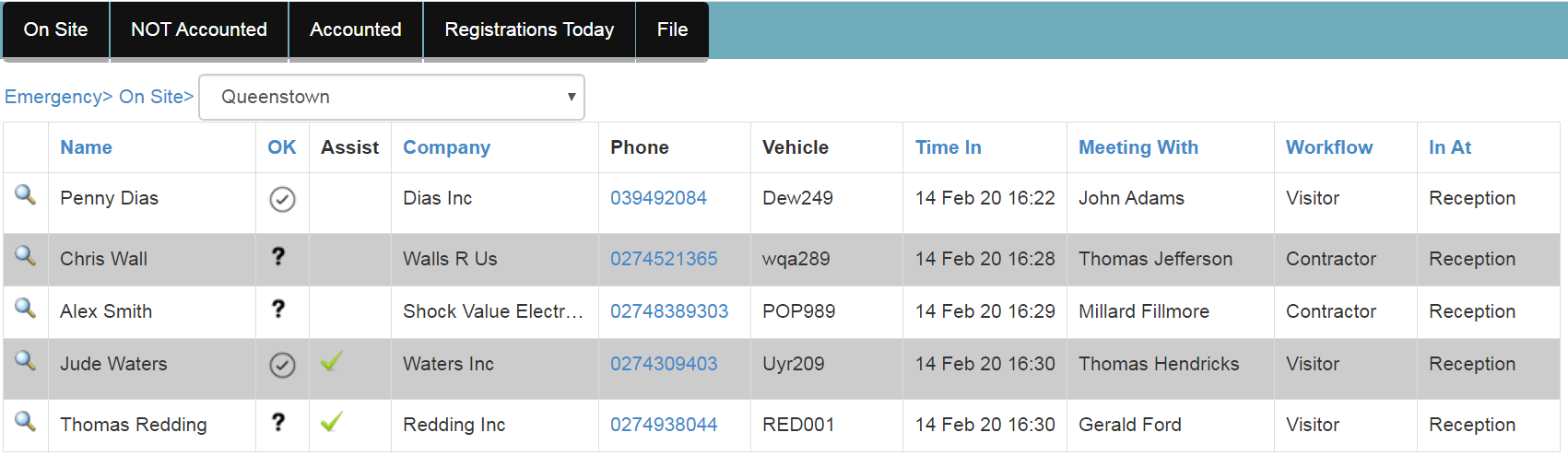
Not Accounted - shows you who has not been accounted for. They will have a ? in the OK column.
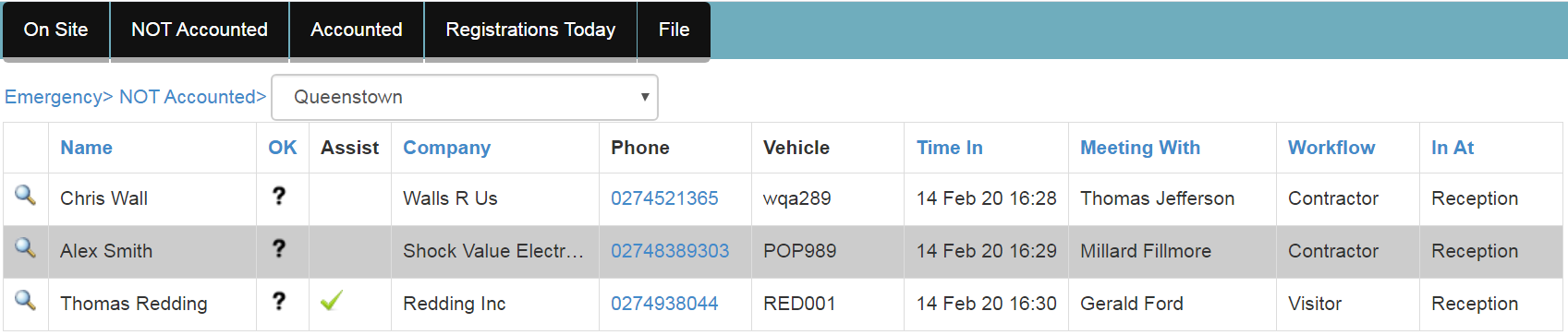
Accounted - shows you who has been accounted for. They will have a tick in the OK column.

'File' - is a drop down box which will let you sign into facilities.
On-Site - Shows you everyone who is currently registered.
Not Accounted - shows you who has not been accounted for. They will have a ? in the OK column.
Accounted - shows you who has been accounted for. They will have a tick
in the OK column.'File' - is a drop down box which will let you sign into facilities.
Clicking on the magnifying Glass  next to the persons name will open up a full page of details.

next to the persons name will open up a full page of details.Using the drop down menu will allow you to select which site you are viewing. You have to be a Site Admin to view multiple sites.
Clicking the person's phone number will call them.
Clicking on the magnifying Glass
 next to the persons name will open up a full page of details.
Related Articles
Emergency report via VisitorRego Portal
In case of an emergency such as a fire, VRP has an emergency feature which displays all registered persons on-site. Log on to the VR Emergency website: https://facilities.visitorrego.com/emergency All registered visitors will be displayed along with ...Pre-defined Custom Reports
As customers requests reports, we make them available to the VisitorRego community. If there is a report you need, request it and we will make it available to all via this web page. Contact our friendly VisitorRego support team with your request.Loading Staff via an Excel Spreadsheet
VisitorRego is able to load staff from an Excel spreadsheet. The process of loading staff from an Excel spreadsheet involves mapping database fields. Excel must be installed on the machine in question to utilise this function. 1. From VisitorRego's ...Register Tab
Use your email address and password to login to the site https://facilities.visitorrego.com/VRF Register> On-site Once you log on the main page Register> On-site> YourBusiness will appear and display the visitor profiles of everyone who has ...Add and Maintain SQL
To add a new custom report you need to tell VisitorRego how to retrieve the data from the database and how to format this data in a report. Open the Custom Reports screen. Note: Before you edit the SQL you need to know the database engine used - ...