My Site Tab
Use your email address and password to login to the site https://facilities.visitorrego.com/VRF
Clicking on the My Site tab will present a drop down menu with various options.

Home Page
This page links to the main page Register> On-site.

(For more information see: Register tab)
My Profile

The 'My Profile' page is split into four dropdown sections: My Details, My Role, My Emergency Details and My Options.
Clicking on the My Site tab will present a drop down menu with various options.
Home Page
This page links to the main page Register> On-site.(For more information see: Register tab)
My Profile
The 'My Profile' page is split into four dropdown sections: My Details, My Role, My Emergency Details and My Options.
You can expand and minimise the sections by clicking on the headings.
My Details
The My Details section contains the profile information for the current user. 
select 'Update'.
My Role
The My Role section details the authority level of various users.


Edit user authority
To edit a user’s authority and logon click the icon , next to their name.
Use the 'Edit Logon' pop up box to change or update the user’s role, email etc.
Select 'Edit Logon'.
Adding a new logon
 To add a new logon to the site click the
 on the table (next to 'Customer').
 Add relevant information, assign role and select 'Add Logon'.
My Emergency Details

A user can enter their emergency details, so in the case of an emergency the information will be readily available.
Fill in fields and press 'Update'.
My Options
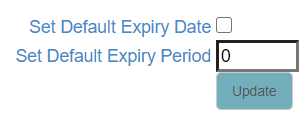
This allows you to set a default expiry date across all Permits.
Tick the "Set Default Expiry Date" box and then enter the number of months you want Permits to be valid for. Then click Update
Logon
The 'Logon' tab will send you to the login portal.Related Articles
Contractors Tab
Use your email address and password to login to the site https://facilities.visitorrego.com/VRF Contractors tab Clicking on the Contractors tab will present a dropdown menu with various options. Contractors> On-site This tab shows the contractors ...Staff Tab
Use your email address and password to login to the site https://facilities.visitorrego.com/VRF Staff Clicking on the Staff tab will present a dropdown menu with various options. Staff> Onsite The Staff> On-site tab displays data of the staff that ...Register Tab
Use your email address and password to login to the site https://facilities.visitorrego.com/VRF Register> On-site Once you log on the main page Register> On-site> YourBusiness will appear and display the visitor profiles of everyone who has ...Valuables tab
See this article for details on setting up the Valuables function Signing the Valuable out Step 1. Open VisitorRego and navigate to the Valuables tab and select a category. Step 2. Select the item you wish to issue and select ‘Out’. Step 3. A list of ...Valuables Tab
Valuables is a useful feature for keeping track of valuable items such a keys, access passes etc. that are given to contractors or visitors during their stay. Items are assigned to a registered visitor and signed out and in accordingly. A visitor ...