Setting up a Health & Safety Quiz (Pre V10)
VisitorRego has the ability to ask visitors a series of multiple choice questions after they have viewed the health and safety screens.
To setup the multiple choice quiz, open VisitorRego and from Admin mode, choose Options> Health and Safety Quiz Setup.
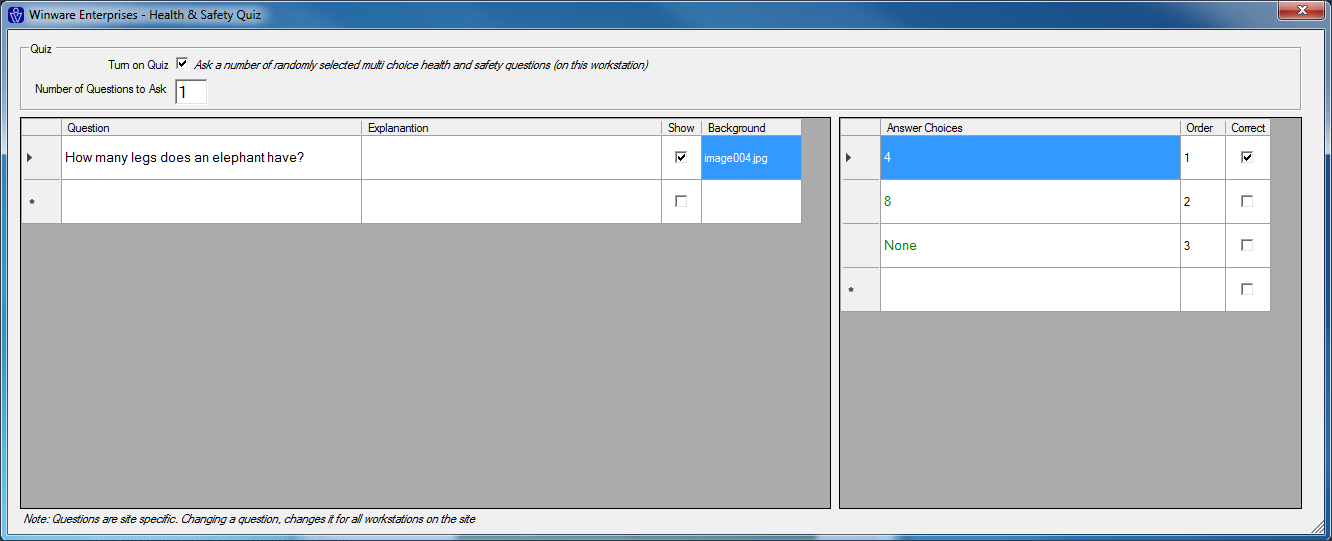
To setup the multiple choice quiz, open VisitorRego and from Admin mode, choose Options> Health and Safety Quiz Setup.
1. Check the Turn on Quiz check-box to turn on the Quiz.
2. Specify the Number of Questions to Ask by typing the number into this field.
3. To add a question, click in the Question field and enter the text you wish to ask.
4. To add an explanation, click in the Explanation field and enter the text. This is shown to further clarify the question if the visitor answers incorrectly.
5. Check the Show check box to display the question in the Health & Safety Quiz.
6. The Background field allows you to choose a background image to display behind the quiz. Your desired image will need to live in the 'Res' folder of the VisitorRego root directory.
7. For each question, you have the ability to display a multiple choice answer. The options for each answer can be added into the Answer Choices field on the right hand side of the Quiz setup window.
Highlight the question you wish to create multiple choices answers for by clicking the arrow to the left of the question, then enter the choices for the answer to this question.
8. To specify the order the answers appear, enter the number in the Order field.
2. Specify the Number of Questions to Ask by typing the number into this field.
3. To add a question, click in the Question field and enter the text you wish to ask.
4. To add an explanation, click in the Explanation field and enter the text. This is shown to further clarify the question if the visitor answers incorrectly.
5. Check the Show check box to display the question in the Health & Safety Quiz.
6. The Background field allows you to choose a background image to display behind the quiz. Your desired image will need to live in the 'Res' folder of the VisitorRego root directory.
7. For each question, you have the ability to display a multiple choice answer. The options for each answer can be added into the Answer Choices field on the right hand side of the Quiz setup window.
Highlight the question you wish to create multiple choices answers for by clicking the arrow to the left of the question, then enter the choices for the answer to this question.
8. To specify the order the answers appear, enter the number in the Order field.
9. Select the correct answer by checking the Correct check box.
To delete a question or answer, click the arrow in the row you wish to delete to highlight. Then press DEL on your keyboard.
When the quiz is turned on, it is displayed to the visitor after they have read the health and safety screens as in the image below.
Visitors tap the
 button for the answer they think is correct.
A correct answer will display as
 as seen in the image below, and the visitor can move on to the next question by tapping the Next button.
 and the visitor will get a second chance at a correct answer.
Related Articles
Viewing Appointments (Pre V10)
This article applies to VisitorRego versions prior to V10. For information on appointments in V10 or higher, please refer to the knowledge base article Pre-Registration Overview. First you need to make the appointments in VisitorRego or using VR ...Setting up your SMS notification (Pre V10)
This article applies to VisitorRego versions prior to V10. For information on SMS setup in V10 or higher, please refer to the knowledge base article SMS notification set up. VisitorRego has the ability to send an SMS notification to both the staff ...Changing and Updating Graphics (Pre V10)
This article applies to VisitorRego versions prior to V10. For information on configuring graphics in V10 or higher, please refer to the knowledge base article Changing and Updating Graphics. Sometimes, the company branding on VisitorRego units needs ...Setting up contractor companies
You can manage site requirements at a company and individual contractor level. When a contractor signs in, VR will check the requirements for the company and contractor. If either level is not compliant the contractor will be denied access. Setting ...Pre-register groups
To bulk pre-register visitors and print labels in advance, a spreadsheet is imported into VisitorRego from your PC or the VisitorRego unit itself. The first step is to obtain the spreadsheet template. Please contact the VisitorRego support team to ...