Viewing Appointments (Pre V10)
 This article applies to VisitorRego versions prior to V10. For information on appointments in V10 or higher, please refer to the knowledge base article Pre-Registration Overview.
First you need to make the appointments in VisitorRego or using VR Portal.
You can view the appointments from VisitorRego's Admin Mode, click File> Pre Register to show all appointments made (or File> Appointments on earlier versions of VisitorRego).
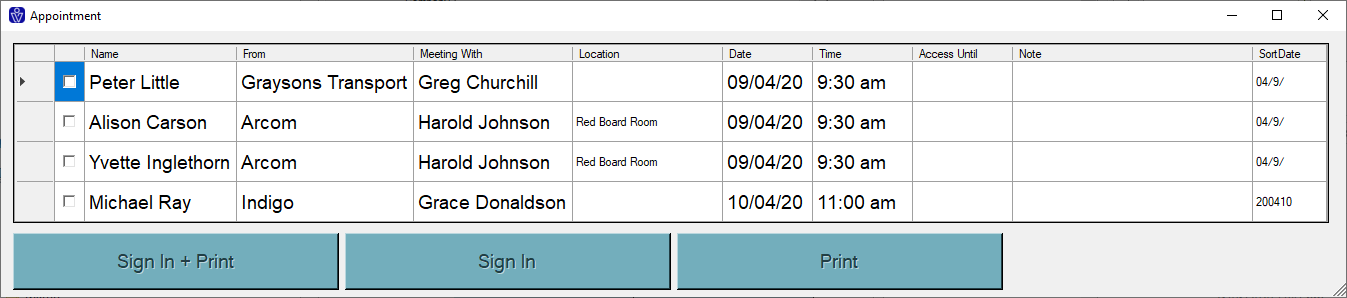
The appointments can be sorted in any order by clicking the column heading. The column SortDate will sort by appointment date and time.
To sign in or print a visitor who has arrived for their appointment, check the box to the left of the visitor or visitors in question. the buttons Sign In + Print, Sign In and Print are now enabled.
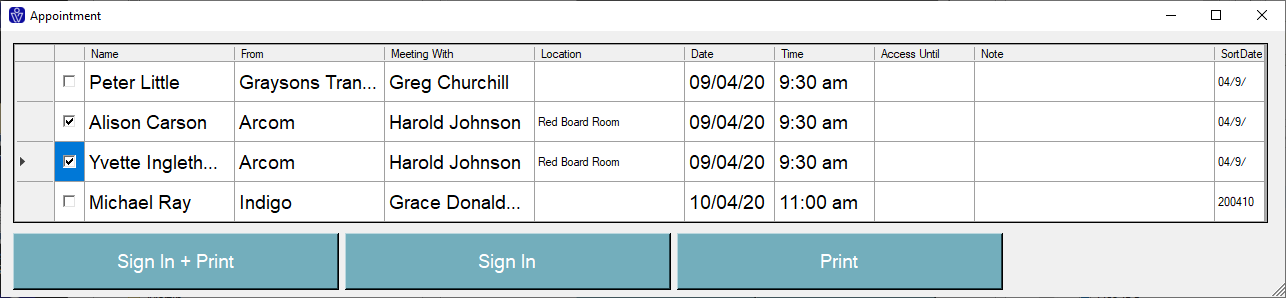
Click Sign In + Print to sign in and print a label for all those appointments checked (the visitor is signed in at the date and time the button is clicked).
Click Sign In to sign in all those appointments checked. This option will NOT print a visitor label (the visitor is signed in at the date and time the button is clicked).
Click Print to print a label for all those appointments checked. The visitor is printed a label but NOT signed in.
If a label is printed it can be given to the visitor on arrival. They can scan this label to sign in using the scanner. Their details (as entered for the appointment) will be retrieved and shown on the registration screen. They can accept these details or correct as required then press Press to Register. They will be shown the health and safety requirements.
Appointment records aren't deleted automatically except when the visitor has used the label to sign themselves in. Using the buttons to sign in and print labels leaves the appointment record in place. These need to deleted manually.
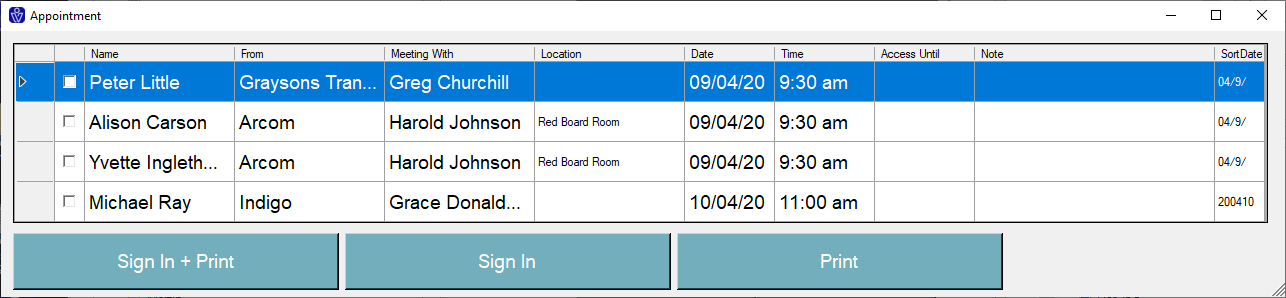
To delete an appointment record, click on the record selector to the left of the persons name, which highlights the entire row. Press the delete key to delete the record. To delete a range of appointments, highlight the first record to be deleted, then hold the shift key and click on the last record to be deleted. With the appointments selected, press the delete key.
Related Articles
How To Make Appointments using VR Portal (Pre V10)
This article applies to VisitorRego versions prior to V10. For information on appointments in V10 or higher, please refer to the knowledge base article Pre-Registration Overview. The steps below show you how to enter details and make an appointment ...
Pre-register groups
To bulk pre-register visitors and print labels in advance, a spreadsheet is imported into VisitorRego from your PC or the VisitorRego unit itself. The first step is to obtain the spreadsheet template. Please contact the VisitorRego support team to ...
Active v Inactive Contractors
Contractors can be set as ‘Inactive’. The contractor maintenance screens can then be filtered showing either ‘Active’ or ‘Inactive’ contractors. This allows you to simply “hide” those contractors which you don’t want or need to maintain. By making ...
Make an Appointment Using VisitorRego (Pre V10)
This article applies to VisitorRego versions prior to V10. For information on appointments in V10 or higher, please refer to the knowledge base article Pre-Registration Overview. The steps below show you how to enter details and make an appointment ...
Manually download visitor pre-registrations
Go to the VR Appliance Touch the Welcome screen to move through to the Self-Registration screen. Touch Visitorrego.com in the top left hand corner to move into Admin Mode. If this is password protected, enter the password into the Name field and ...
