Manually download visitor pre-registrations
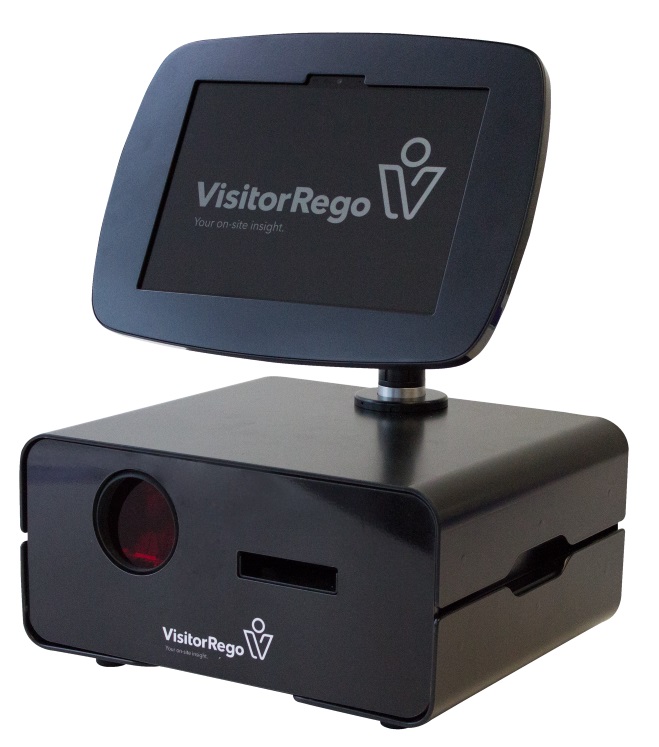
Go to the VR Appliance
Touch the Welcome screen to move through to the Self-Registration screen.
Touch Visitorrego.com in the top left hand corner to move into Admin Mode.
If this is password protected, enter the password into the Name field and touch Visitorrego.com
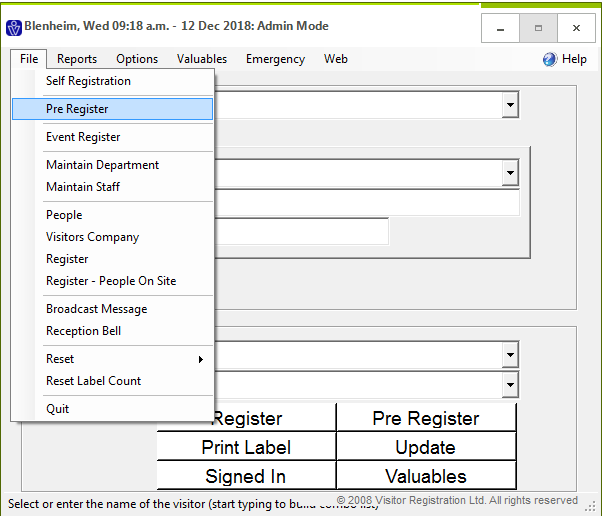
From the navigation bar select File
From the dropdown menu select Pre Register
From the dropdown menu select Pre Register
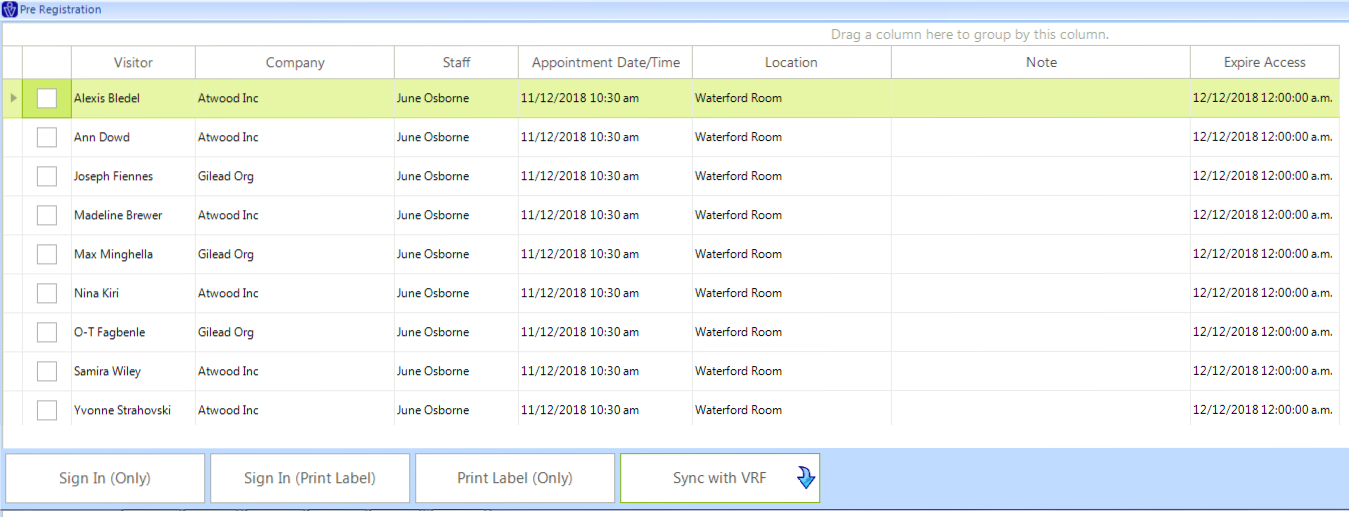
The names from the spreadsheet will be displayed. This is automatically downloaded overnight.
You can manually download these by clicking Sync with VRF.
Related Articles
Viewing Appointments (Pre V10)
This article applies to VisitorRego versions prior to V10. For information on appointments in V10 or higher, please refer to the knowledge base article Pre-Registration Overview. First you need to make the appointments in VisitorRego or using VR ...Pre-register groups
To bulk pre-register visitors and print labels in advance, a spreadsheet is imported into VisitorRego from your PC or the VisitorRego unit itself. The first step is to obtain the spreadsheet template. Please contact the VisitorRego support team to ...How To Make Appointments using VR Portal (Pre V10)
This article applies to VisitorRego versions prior to V10. For information on appointments in V10 or higher, please refer to the knowledge base article Pre-Registration Overview. The steps below show you how to enter details and make an appointment ...Event Register and loading Visitors (Pre V10)
Visitors are able to be pre-loaded into VisitorRego making registration easy for events. In order to load visitors, your visitor data will need to be in an Excel spreadsheet. Load Visitors from an Excel Spreadsheet You can load visitors from ...Make an Appointment Using VisitorRego (Pre V10)
This article applies to VisitorRego versions prior to V10. For information on appointments in V10 or higher, please refer to the knowledge base article Pre-Registration Overview. The steps below show you how to enter details and make an appointment ...